A civic organisation representing the residents of Woodstock, Cape Town.
Check Your Property Evaluation Guide
Check Your Property Evaluation Guide
The WRA’s has put together a short guide to checking if your property evaluation for the City’s evaluation roll is in the right ball park, and how to get the objection form, if necessary, to submit via email. See the 8 steps below to check and object your evaluation below.
Objections need to be submitted by 30th April via email.
You can also do an objection via the City’s ePortal, but you can still use our checking method.
Go to https://web1.capetown.gov.za/web1/gv2025/SearchProperty
Step 1 – Search your Property on the GV roll of 2025
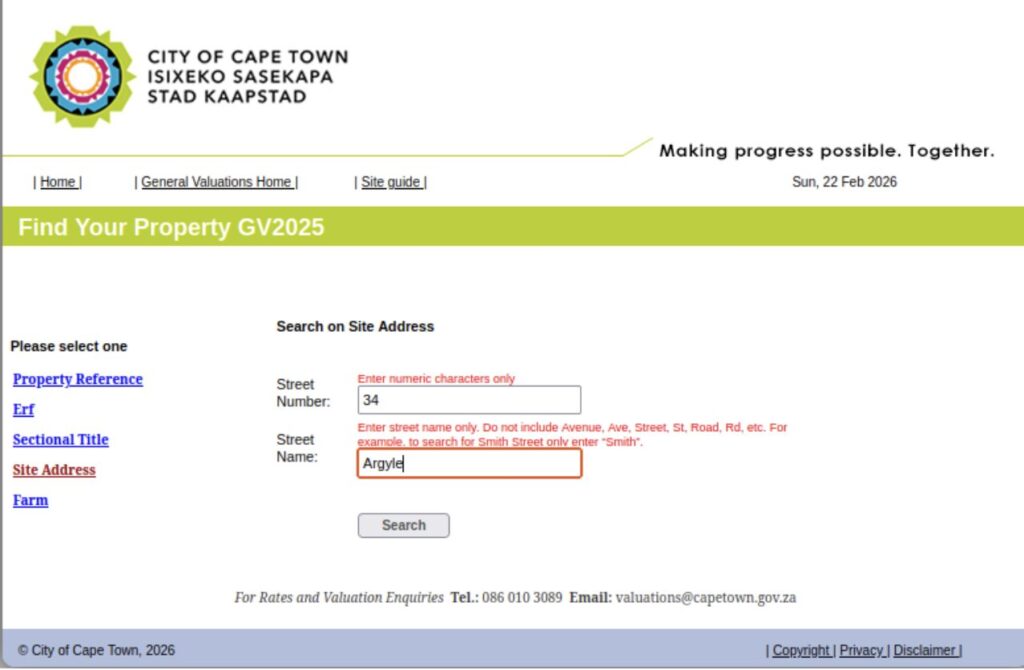
In the left-hand side menu, click on Site Address and fill in your address.
In the Street name omit the ‘Street’, ‘Road’, ‘Avenue’ etc.
If you prefer to search using your Erf Number, then click on Erf.
Then click on Search
Step 2 – Choose your property and note your valuation
Sometimes the search results will show you more than one row of properties or even multiple tabs of properties.
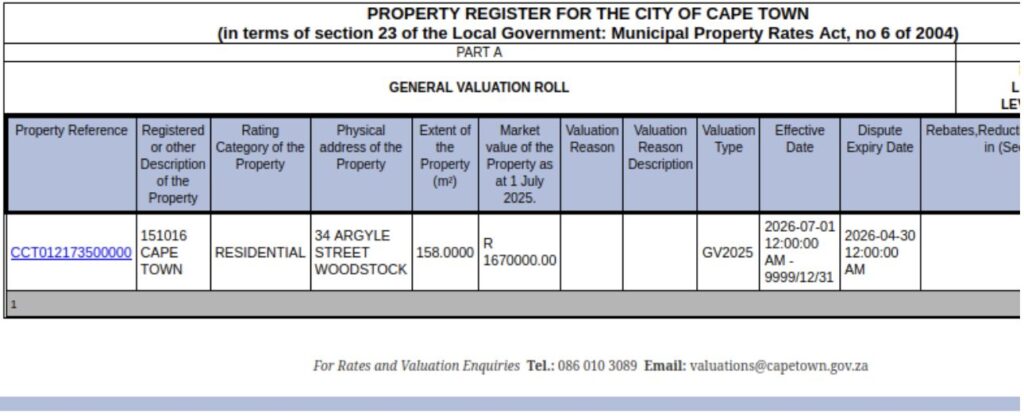
Choose your property according to the Physical address of the Property column.
Note the valuation of your property in the ‘Market value of the Property at 1 July 2025’ column.
In the example above this is R1 670 000.00.
Then click on the CCTxxxxxxx link in the Property Reference column, all the way on the left.
Further Info:
The Registered or other Description of the Property column states the Erf number of your property.The Extent of the Property (m2) column states the square meter extent of your Erf/plot (not your house).
Step 3 – Compare your valuation to other sales in your street/area
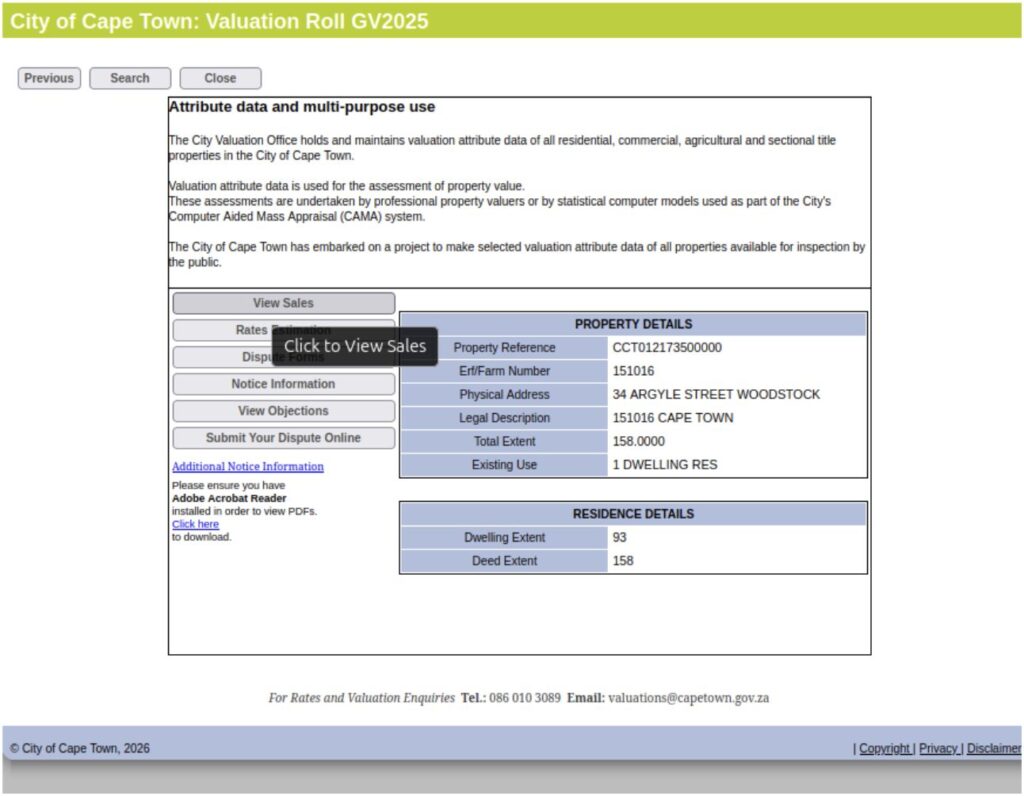
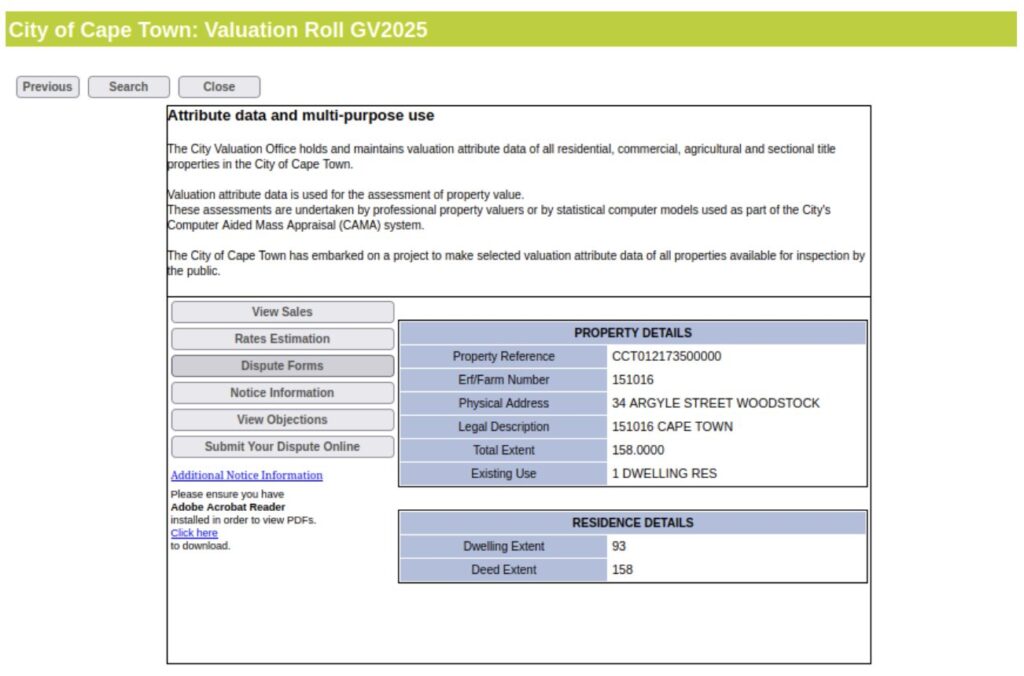
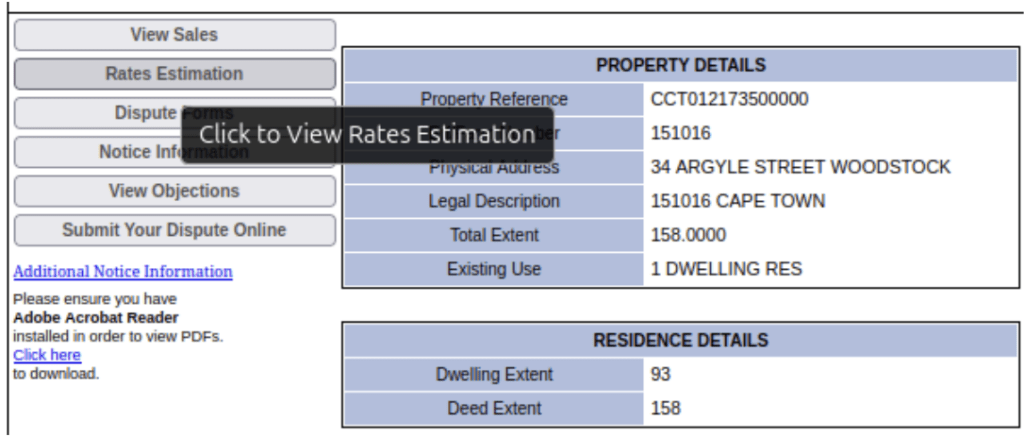
To compare your property’s evaluation with others in the area, in the left hand menu, click on View Sales.
Further Info:
The RESIDENCE DETAILS on the bottom right state the size of your house (Dwelling Extent) and the size of your plot (Deed Extent).
In the example above, the house is 93 square metres and the plot is 158 square metres.
Check that the size of your house is stated correctly.
Step 4 – Narrow down the search to your street/area
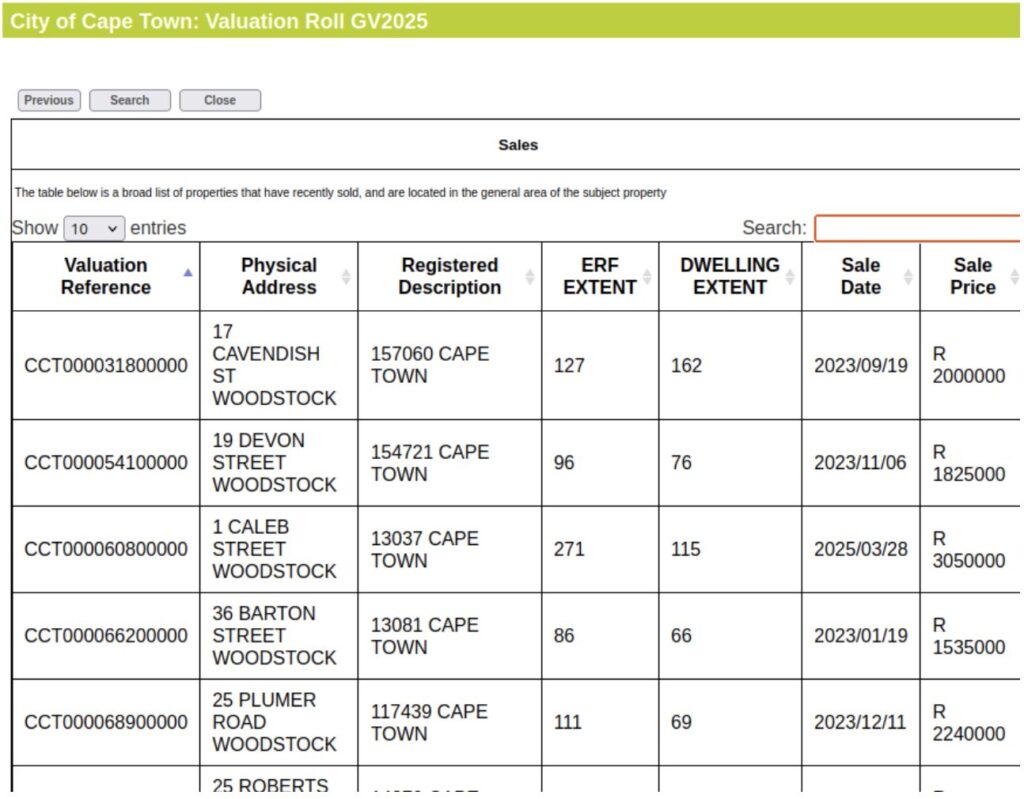
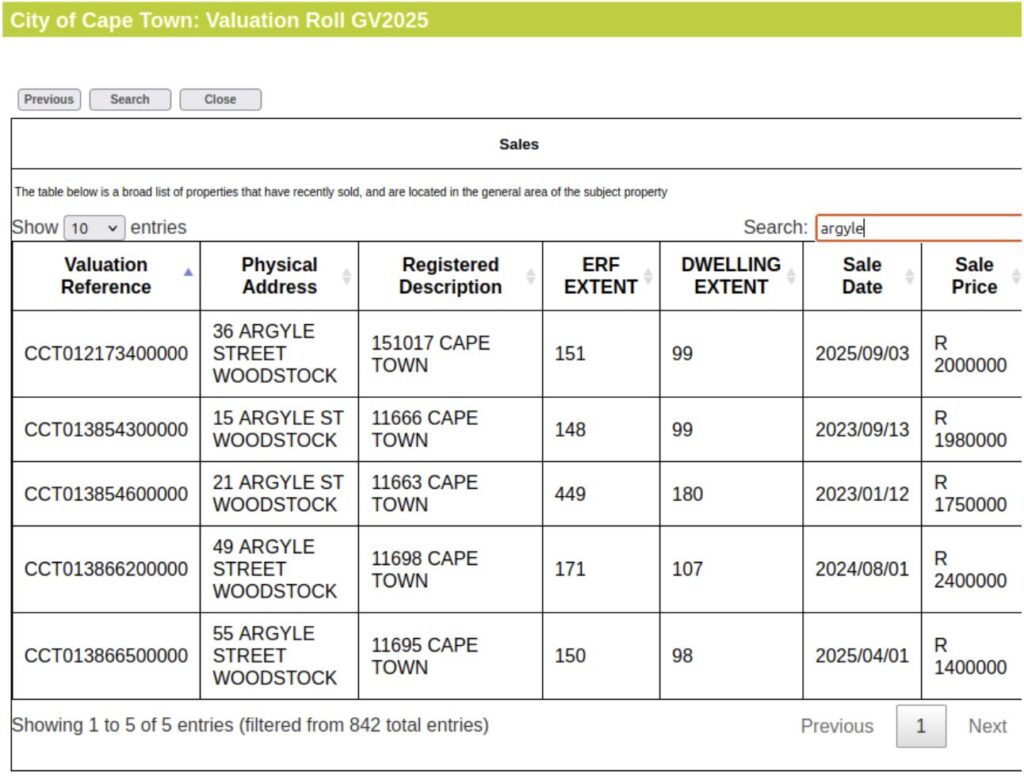
To narrow down search, in the search window on the top right, type in the name of the street you want to check the sales info for.
Omit the ‘Street’, ‘Road’, ‘Avenue’ and just type the street name, for example, Argyle.
You want to compare your evaluation to similar properties, so also search your own street as well as other streets nearby where you know of erfs with houses of a similar size and condition.
Step 5 – Choose comparable properties sold around the evaluation date
To choose comparable properties, first look at the Sale Date column.
The date for the property evaluation is 1 July 2025.
Choose the sales dated as closely as possible to 1 July 2025.
Then check Erf and Dwelling Extent and the Physical Address next.
Once you have identified comparable properties, check their Sale Prices in the last column on the right.
In our example, the property listed last – 55 Argyle – was sold on 1 April 2025, i.e. close to the 1 July cut-off date and is similar in erf/dwelling size. It sold for R1 400 000.
You can see that 36 and 15 Argyle sold for closer to R200 000 in September 2025 and 2023, respectively.
You now have a starting point to compare if the property valuation of your property seems realistic.
If you are happy with your property valuation, you don’t need to do anything. If you can check how much money you will be paying in rates going forward, jump to Step 8.
If think your property is overvalued, proceed with Step 6.
Step 6 – Download your prepopulated objection form
Use your browser ‘Back’ function to return to this screen.
Then, in the left-hand menu, click on Dispute Forms.
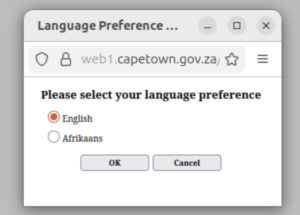
This pops up a window asking you to select your preferred language.
Select your preferred language and click OK.
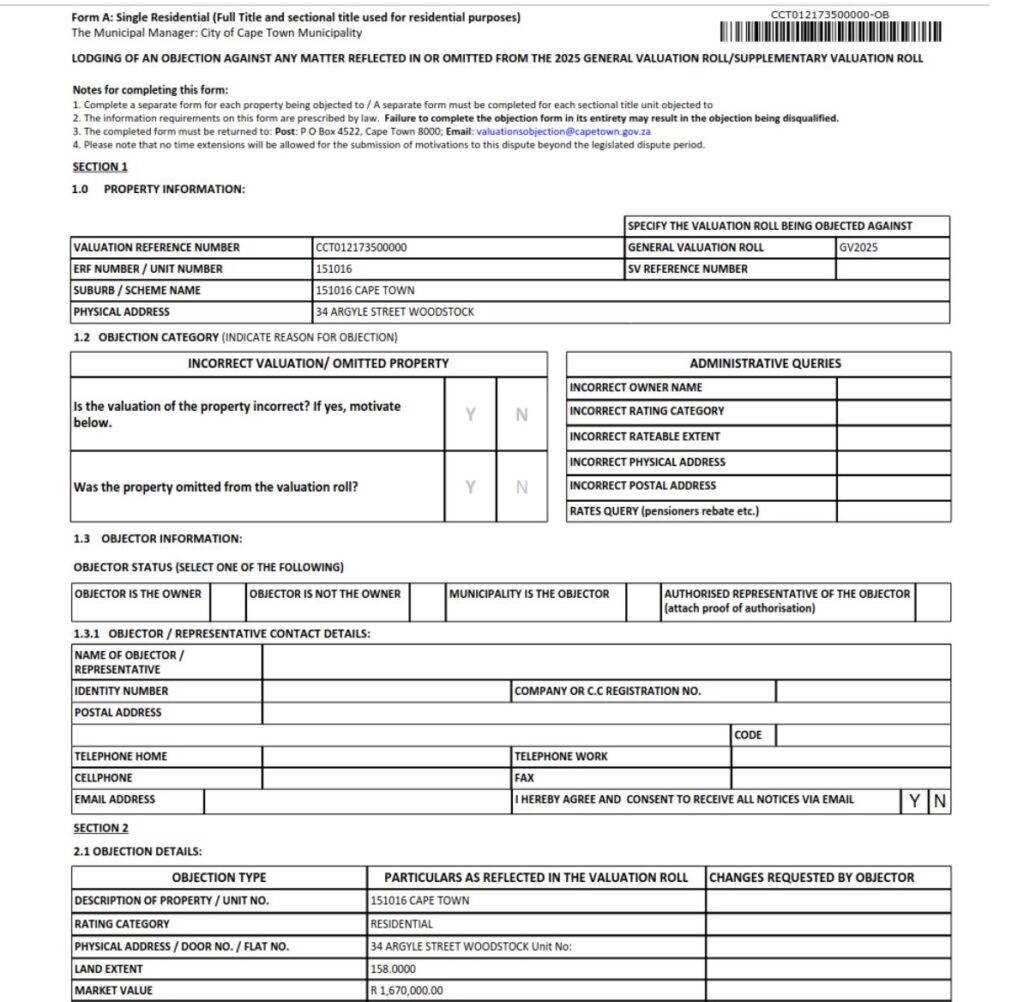
This opens up your objection form in a new browser window.
You will see that some of your Property details are already filled and the form has a barcode on the top.
Step 7 – Download the PDF and complete all the necessary fields.
On page 2 of the form, called SECTION 6 – MARKET INFORMATION
You can fill in the details of the comparable properties which sold in your area and which indicate that your property is wrongly evaluated.
You can also add an extra letter to this form and refer to it if you want to supply more info.
Remember to complete and sign the form, email it to [email protected] by 30 April 2026
Step 8 – Check your rates estimation at your current evaluation
Use your browser ‘Back’ function to return to this screen.
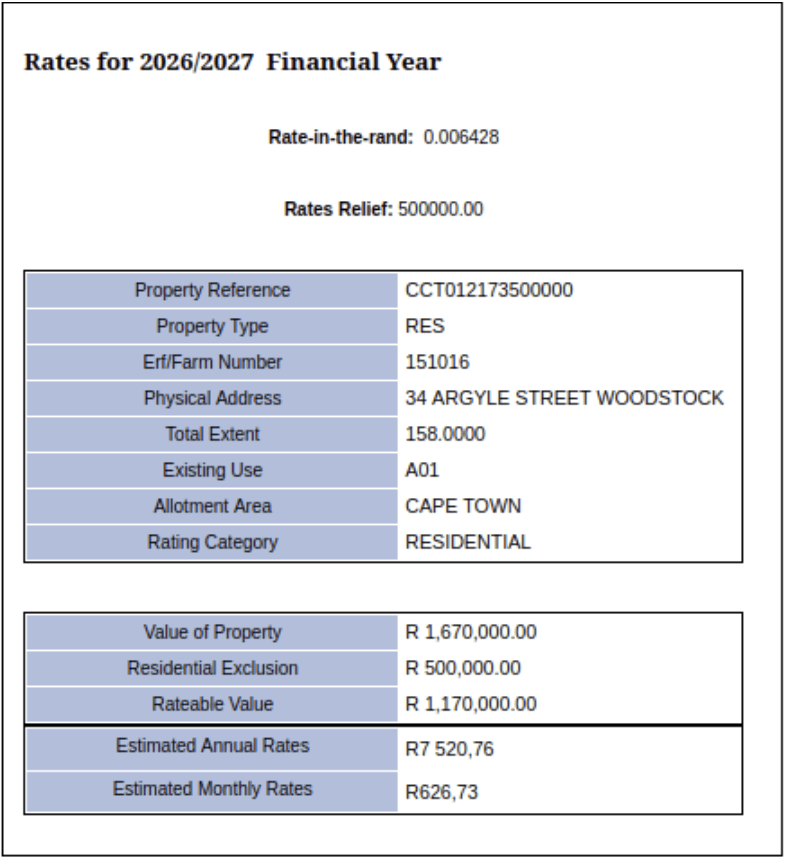
In the left-hand menu, click on Rates Estimation.
This opens a window with quite a bit of information about how rates are calculated.
The last two rows at the bottom will tell you how much you can expect to pay per year and per month – Remember, even if your property is evaluated correctly, if you cannot afford to pay the rates, you might be able to apply for rates relief.
Also, the estimated monthly rates are only a part of your monthly municipal bill, the amount below does not include electricity and water and other charges.